Prepared for one game
Includes game-specific data and choices. Check the card's update date and game-version information.
 Game TrackerMade by a gamer, for gamers.
LESS TRACKING, MORE GAMING
From one quick checklist to a complete character build. Learn how to make Game Tracker 0.5.0 fit the way you play.
Button names below use English. Your app may show translated labels; native controls can look a little different on each platform.
WHAT'S NEW IN 0.5.0
Version 0.5 adds monthly and yearly Game Tracker Plus, optional rewarded ads for extra capacity, account avatars and photo uploads, Plus frames, customization themes with matching tracker icons, and a dashboard with a wide choice of selectable metrics. Prepared game templates, description localization, template ownership and cross-device reconciliation have also been improved.
This guide covers Game Tracker 0.5.0 on iOS and Android. See Pricing for the full Free, reward and Plus comparison.
01 / GET GOING
The game screen says Nothing here yet and offers four ways to begin: Start from a Template for a prepared structure, Create a Progress Tracker for a Goal containing several trackers, Make a Task List for a To-Do tracker, or Set a Resource Reminder for a Reminder tracker. These are suggestions, not the only choices. The central + opens the full tracker menu.
Creating a tracker sets up the container, not the action you want to track. First choose its type and give it a broad name. After it appears, open it and add the specific item or action inside. The same pattern applies to other tracker types.
Create a To-Do tracker named “Daily quests”. Inside it, add a task named “Collect wood”. Add “Talk to the merchant” as another task in the same tracker. If you named the tracker “Collect wood” by mistake, you can rename it later.
Where am I? Overview is your library of game cards. A game screen holds that game's trackers and the central + menu. An expanded tracker shows its items and the controls to add or edit them.
Game Tracker is a companion you update as you play. It does not read your save files or automatically import achievements or inventory from a game.
02 / YOUR LIBRARY
Tap the + card on Overview and enter a title. A cover is optional: you can start tracking immediately and add one later. To change an existing game, press and hold its card to enter editing mode, then tap the card. Change the title or image and tap Save.
Use the game's full official title when a short name is ambiguous. Selecting the right catalog entry also helps the app offer the appropriate game-specific templates.
Use Choose from Photos (or the Android image picker) to select an image on your device. You can replace it later or use Remove Photo. Removing the image does not remove the game or its trackers.
The title may not match a catalog entry, the entry may have no available image, or the image service or internet connection may be temporarily unavailable. A game can still be added without artwork.
You do not need to delete and recreate the game to fix its cover.
Press and hold a game card, use its delete control and review the confirmation. Deleting a game also deletes all its trackers and their contents. This is not a way to archive a completed game.
03 / MAKE IT YOURS
Press and hold any game card to enter editing mode. Drag cards into the order you want, then tap Done. In editing mode, tapping a card opens its details instead of opening the game.
Open Settings → Games Per Row. Choose fewer cards per row for larger covers, or more for a compact overview. The available range depends on your device.
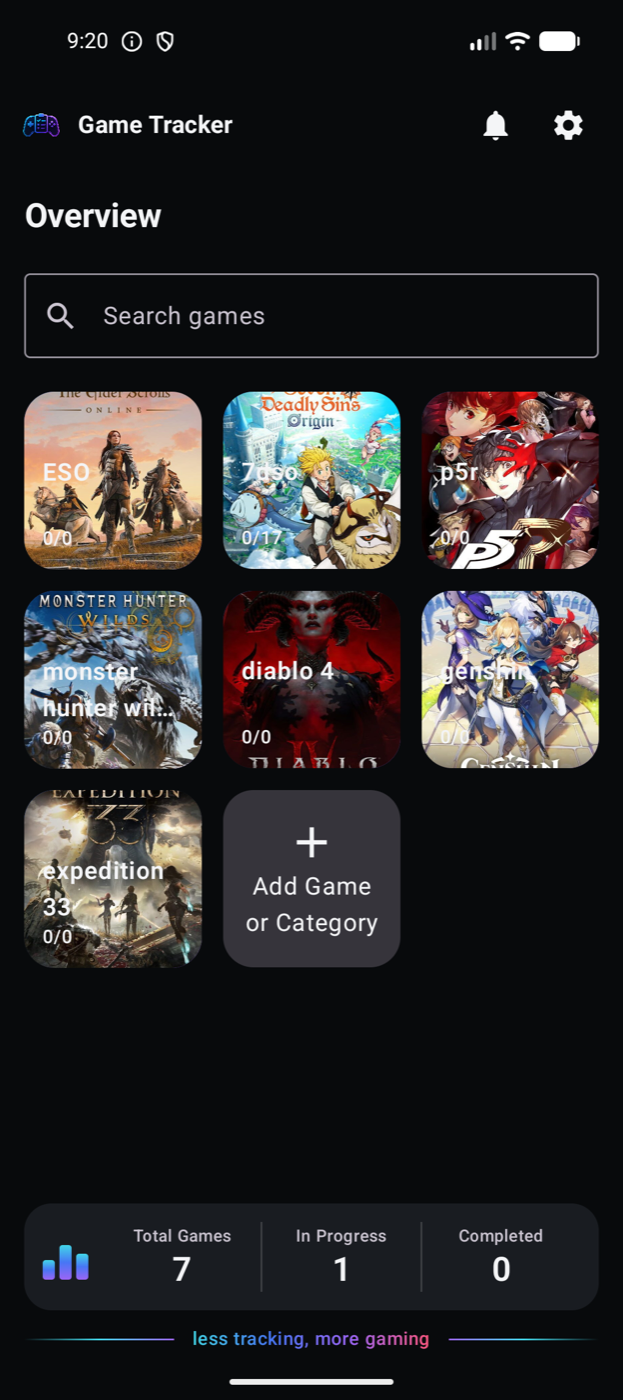
Once your library has more than six games, a game search field appears. Search by title. Clear the search to see your full library and the add-game card again.
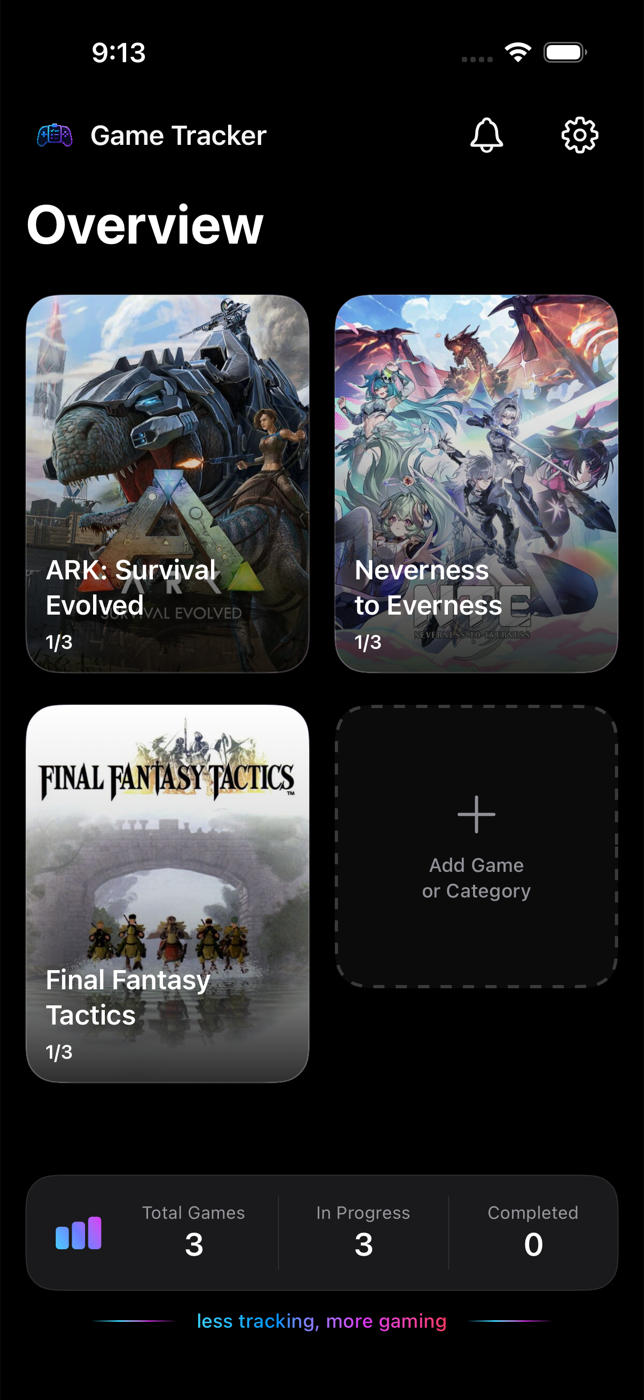
Inside a game, use the game carousel to move between games. In Settings, Carousel Hide Time controls how long covers stay visible before switching to text. Choose Always Text for text immediately, or turn on Always Show Game Covers to keep the artwork visible.
04 / THE TOOLKIT
Open a game and tap + to choose a type. Tap a tracker's header or chevron to expand it. Add content inside the expanded card.
| Type | Use it for | How it works |
|---|---|---|
| To-Do | Quests, collectibles, a daily checklist | Each item is either done or not done. |
| Counter | Resources, runs, upgrade materials | A current amount toward a target. |
| Character | Roles, classes, gear and abilities | Repeatable typed elements with optional details. |
| Note | Build advice, locations, links, images | Reference information you want to keep. |
| Reminder | Resets, research, events, respawns | A date and time, optionally repeating. |
| Recipe | Crafting and multi-step material chains | A result with ingredients and ways to obtain them. |
| Goal | A build, a collection or a larger project | A container that groups other trackers. |
Add one item per task. Tap its checkbox to complete it; tap again to undo. Use the item's edit control to rename or delete it. Example: “Unlock the dungeon”, “Finish the quest”, “Collect the reward”.
Add a named counter, set its current value and target, then save. Tap the counter to add one. Open its editor to correct the value, adjust the target, use the number picker, or Reset to 0. It counts as complete when its target is reached.
Example: Use a Counter for “Iron ore: 12 / 50”. Use To-Do for “Visit the blacksmith”. A Counter tracks quantity; it does not describe a crafting chain.
Name the tracker after a character or build. Each repeatable element has a type and subtype: attributes such as role, class, profession, gender or position; equipment such as weapons, armor, artifacts and accessories; or skills and abilities such as magic, active abilities and passives. Add optional details for stats, affixes, sources or recommendations. Every element is optional, and a Character tracker can live inside a Goal.
Add a title, text and optionally an image. Tap the note to read it; use its edit control to change it. Web links in the note become tappable. Keep routes, build references or a screenshot beside your actual checklist.
Create a Goal, expand it and use Add Tracker inside the Goal. You can add Character, To-Do, Counter, Note, Reminder and Recipe trackers. A Goal cannot contain another Goal.
Example: “Build my healer” can contain a Character loadout, a quest checklist, upgrade-material counters, a build note and a weekly reminder. The Goal keeps the whole plan together; each child tracker still works normally.
05 / KEEP IT TIDY
Use the tracker's actions menu for Rename, Duplicate, Save as Template and Delete. On iOS, top-level tracker actions are also available by swiping the card. Android exposes actions through the tracker's menu. Rename also lets you edit tags where shown.
Inside a game, use Search trackers and items to find matching trackers or entries. A matching child can keep its parent Goal visible so you can reach it. Clear the query to return to the normal view. Add comma-separated tags when editing tracker details, and use template search and tag filters to narrow the Template Library.
Collapse the trackers first, then press and hold a top-level tracker's header to enter tracker reordering. Move trackers into the order you want and finish with the displayed Done or Save control. To reorder items, expand a tracker and tap its up/down reorder icon; it appears when there is more than one item. In a Goal, that control orders its child trackers.
Duplicate makes another tracker in the current game. Save as Template stores a reusable setup in My Templates for later use. Saving a Goal includes its child trackers; saving one child creates a standalone template.
06 / CRAFTING, WITHOUT THE SPREADSHEET
A Recipe is useful when “collect 20” is not enough: an item might be crafted from several ingredients, bought, or obtained as a drop.
A crafting method with ingredient children calculates its output from those ingredients. You do not tap it to manufacture extra progress. Changing a parent target adjusts the amounts required below it.
If one Leather needs 10 Strips and the method produces one Leather, asking for two Leather requires 20 Strips. With 10 Strips collected, that crafting method contributes one Leather. A second acquisition method can record Leather obtained directly as a drop.
Alternative methods contribute toward the same parent item. Only record the materials or results you actually obtained, so you do not count the same acquisition twice.
Expand only the branches you are working on. Use a branch's menu to edit its name and quantities or add materials and methods. A prepared template can create several separate Recipe trackers; open the specific output you need.
07 / DON'T START FROM ZERO
Open Templates from the game's + menu or the suggestions in an empty game. Switch between Curated and My Templates, browse categories and use tag filters to narrow the list. Expand a template to inspect its structure before adding it.
Includes game-specific data and choices. Check the card's update date and game-version information.
Uses the selected game's systems and names. You still supply the specific character, values or other details.
A fallback for games without a dedicated version. Review and adjust its fields in Guided Setup.
Unique catalogs include The Seven Deadly Sins: Origin engraving materials; The Elder Scrolls Online trait research and Mythic Items; Stardew Valley cooking recipes; Atelier Resleriana alchemy recipes; Granblue Fantasy: Relink and Clair Obscur: Expedition 33 character builds; and Fire Emblem Fortune’s Weave recruitment.
The recruitment template asks for the Part I leader, selects the corresponding recruitable characters and sorts them by required Renown. It includes Support and Renown requirements, recruitment notes, class/weapon guidance and separate lists of Most favorite and Liked gifts. Review the template's source and freshness notes; not every recommendation is an in-game default.
Curated descriptions are available in English, Russian, German, French and Spanish. Game terminology and technical game fields retain their original names; user-written descriptions are kept as written. Contextual Hades II / Dead Cells Run Builds and Farming Plans are deferred beyond 0.5.
Quick Add, when offered, uses the saved titles, values and defaults immediately. Guided Setup lets you fill in choices and edit a preview before applying it. Changes in that preview affect the new trackers, not the saved source template. Game-specific templates may require Guided Setup.
When you apply an own template, Choose Game lists its game of origin first when available, then games in your library and the option to create a new game. Guest-created own templates are associated with your account when you migrate the library at sign-in, so you can manage them on your other devices.
New To-Do items start unchecked. Reminder dates are calculated relative to when you apply the template. Review counter starting values and reminder settings before use. Curated catalog definitions are read-only and cannot be edited, cloned or saved as own templates. Only your own saved templates can be edited and duplicated by their author. Plus permits duplicating applied curated trackers, but does not make catalog originals editable or allow saving curated-derived content as own templates.
Some templates exist only for a specific game. Check that the game is the correct catalog match, clear tag filters and open the relevant category. Similar titles, sequels and editions can have different templates. A universal template is a starting structure, not a complete database for every game.
Games change after patches. Check the template's update date and supported game version. Adjust the resulting trackers for your situation and contact Support to report inaccurate data. Applying a prepared template does not guarantee that its values match a later patch.
08 / COME BACK AT THE RIGHT TIME
Complete Reminder marks a one-time reminder done when tapped. Postpone moves it by the configured number of days. To move an existing reminder without opening its editor, press and hold it, choose a quantity and select hours, days or weeks. The date is updated and its system notification is rescheduled. An hourly, daily or weekly reminder repeats automatically; tapping it opens the reminder without changing its schedule. Edit its frequency or delete it when you no longer need it.
Tap the bell on Overview to open the notification inbox. Tap an entry to go to its game and Reminder tracker. Opening a system notification also takes you to the relevant tracker.
If it keeps happening, send a bug report with your device, app version and the reminder settings you used.
09 / SMALL ADJUSTMENTS
Open the gear icon on Overview. App Language can follow your device or use one of the available languages. Games Per Row, Carousel Hide Time and Always Show Game Covers control how your library and game switcher look.
Between General and About the App, open Appearance. Select a theme to preview its palette, tracker card and seven matching icons on the same screen; tap Apply theme to use it. Midnight Quest (dark) and Daybreak Camp (light) are free. Plus adds Game World (game-cover background), Neon Arcade (black/pink), Golden Legend (gold), Emerald Grove (green), Haunted Quest (Halloween) and Christmas Quest. Locked themes can still be previewed.
The theme stays on this device. Game World uses the selected game's cover on the tracker screen, with a dark overlay and readable cards; without a cover it uses a dark fallback. If Plus expires, premium appearance falls back to Midnight Quest while retaining your preference.
Below Appearance, Dashboard metrics lets Plus users choose three ordered metrics with a live preview. Selecting a metric already used in another slot swaps their positions. Reset restores Total Games, In Progress, Completed, which are also the Free defaults.
The nine choices are Total Games, In Progress, Completed, Total Trackers, Total Reminders, Next Reminder, Plus Days Left, My Templates and Completed Goals. Counts refer to the current app library; tracker counts include Goal children. Completed Goals counts completed nonempty Goal containers using their task, counter and recipe progress. Notes, characters and reminders do not determine Goal completion. A missing next reminder or subscription date appears as a dash. Days Left reflects the current paid period, not a promise that renewal will stop then.
Dashboard selection is device-local. After Plus expires, the default metrics are shown while your custom selection is kept for renewal.
Game covers and public metadata use a system-purgeable cache. On iOS, open the system Settings app, find Game Tracker and enable Clear Game Tracker Cache; cached files are removed the next time the app launches. Your games and trackers are not deleted. Android exposes cache clearing through the app system storage settings.
Go to Settings → Support Email, choose the appropriate request type and review the prepared message. Include what you expected, what happened and the steps to reproduce it. The Settings screen also shows your app version.
A bug report can include recent diagnostic files. Review the message and attachments before sending. If a mail composer is unavailable, the app may offer sharing or your default mail app. You can also use the support page.
10 / ACCOUNT & CLOUD
Sign in from the person icon using Apple or Google on iOS, or Google on Android. Signing in does not merge or replace your library. Games, trackers and own templates stay on the current device; they move between devices only when you restore a backup.
Link both sign-in methods in Account to open the same account on either platform. Plus and your account avatar are shared by the account; library edits are not synchronized automatically.
Open Account → Edit avatar. Signed-in Free and Plus users can choose an original silhouette or a photo. Plus also offers avatar frames. Save to update your account profile across devices. The app only accesses the photo you select.
Open Account → Backups → Back Up Now. The app saves a snapshot with own templates and library images, then queues its compressed file for cloud upload. Free retains one manual copy; Plus retains ten. Manual backups are never created by a timer.
An automatic safety copy is created before deleting a game, restoring a backup or signing out, at most once every 24 hours. Free keeps one automatic copy, Plus ten. Further qualifying actions during that interval keep the previous protective copy. Ordinary edits, adding trackers, opening the app and inactivity do not create copies. If no qualifying action occurs, there may be no automatic backup.
On the destination device, sign in to the same account and tap Refresh Cloud Backups. Select a copy and choose Merge to combine it with the local library using the existing reconciliation rules, or Replace to restore it in place of the local library. Replace asks for confirmation. Restored additions still follow creation limits and reward rules.
If upload fails, the backup remains on the source device and retries with a delay; no background loop repeatedly reads the library from the server. Confirm upload before uninstalling or moving to another device. Free has 50 MB and Plus 150 MB of cloud backup storage, shared by the account, with separate manual and automatic history allowances. A delayed automatic upload does not prevent an eligible manual upload.
Account deletion removes its server records, profile and cloud backup files. The current device keeps the library as guest data. Signing out or deleting the app does not cancel a store subscription.
11 / CAPACITY & PLUS
Free includes 20 games, 20 trackers per game and 20 saved own templates. A Goal and each child count as trackers; items inside a tracker do not use separate tracker slots. Local manual tracking is available to guests within these limits. Curated applications, rewards and subscriptions require a Game Tracker account.
At a limit, the app offers an ad, Plus or Cancel. A completed, verified ad adds capacity for 1 game, 2 trackers in the selected game or 1 saved own template. Unused tracker rewards stay with that game; rewards cannot be exchanged between categories. Retry the original action once the reward is confirmed. Added content stays, but deleting it does not create a reusable above-limit slot.
You may apply own templates repeatedly; only the resulting tracker capacity matters. If an own template needs five additional tracker places, three ads cover them at two per ad, less any existing rewards. The app calculates the requirement before applying.
Curated templates have 3 applications per week + up to 2 extra applications for ads, for a maximum of five. The week resets Monday at 00:00 UTC. If a curated application exceeds tracker capacity, one ad covers the complete selected addition, even during the first three uses. Future manual trackers follow the ordinary reward rules. Previewing and canceling setup do not spend a use.
Open Game Tracker Plus to compare monthly and yearly billing. Both offer the same features; prices and currency come from your store. After purchase verification, the screen shows Plus status and the end of the current period. This date can move after an auto-renewal.
Use the same Game Tracker account across devices. If paid access is missing, use Restore App Store Purchases on iOS or the available store restore/status action on Android, then refresh the account status. Do not buy a second subscription to fix an account mismatch. If verification is pending, reconnect first.
Manage renewal through the original store. Signing out, uninstalling or deleting an account does not cancel billing. If Plus expires, your existing library remains and Free limits apply to new additions. Read the complete feature comparison, subscription terms and advertising privacy details.
Rewards require connectivity, an available ad and applicable privacy choices. A privacy form appears only when required; it is not shown on every launch. Check the advertising privacy options in the app when available. An unfinished or unavailable ad does not grant a reward; a completed ad can briefly await server confirmation.
12 / Q&A
Yes. You can work with games, trackers and saved content on your device without a connection. Finding new covers, loading external images and opening web links requires internet access.
No account is required for guest mode. An optional account enables cloud backup transfers. Link Apple and Google to the same account before changing sign-in provider or platform.
Changes are saved locally first. Signed-in users can upload backup files. Uninstalling can remove local data, so create a manual backup and confirm that it uploaded before reinstalling.
A counter is complete when its current amount reaches its target. Open the counter editor to check both numbers. Partial resource collection is different from completing an entire tracked item.
A crafting method with child ingredients is calculated from those ingredients. Update the materials beneath it instead. Directly collectable ingredients and methods without ingredient children can be incremented.
Applying a template creates new trackers. Guided Setup edits the new preview, not the saved source. Editing or deleting a saved template does not replace the trackers you already created from it.
Free includes 20 saved own templates. An optional ad lets you save one more; Plus removes this plan-based limit. Applying your own template does not use a saved-template slot or a weekly application allowance, but its new trackers must fit the destination game or be covered by tracker rewards. Curated definitions cannot be copied into My Templates.
Yes. All available tracker types can be created directly from the + menu. Templates are optional starting points. Curated source definitions remain read-only and their applied content retains its origin; copying restrictions still apply.
Smart Tracker is a future roadmap milestone, not a feature of the 0.5 release. The current app offers manual trackers and prepared templates.
The pictures are real iOS and Android development-build screenshots from the site's gallery. Layouts vary by platform, screen size, language and app version. Use the named actions in this guide; your controls may be positioned differently.
Tell us which game, tracker and app version you are using, and what you were trying to do.
Get support ↗No matching section. Try “template”, “cover”, “counter” or “reminder”.